
How to Install Bedrock Add-Ons on Android
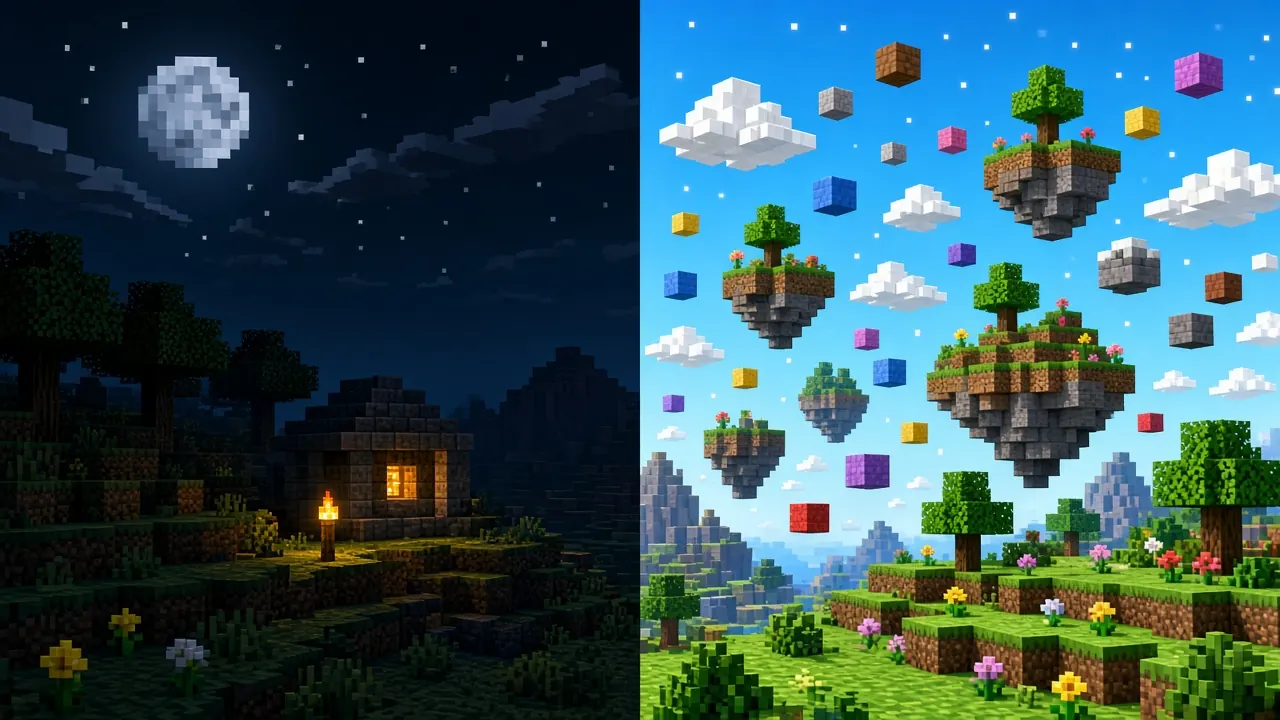
Android Bedrock is one of the few platforms where sideloading community add-ons is officially supported through the same import
flow Mojang documents for .mcaddon and .mcpack files. The process is tap-to-open, not a separate mod
manager app. Console players on Xbox, PlayStation, or Switch cannot mirror these steps they rely on Marketplace content or
publisher-approved packs. On Android, success means routing downloads through Minecraft, enabling both behavior and resource sides
on a world, and keeping your game version aligned with each pack’s requirements. This guide covers preparation, install steps,
file-manager fallbacks, and fixes when imports silently fail.
Before you start
- Update Minecraft from Google Play so import APIs match current pack manifests.
- Open Settings in-game and write down the full version string compare it with the compatibility guide before installing older packs.
- Download from the creator’s official distribution page or the Marketplace; avoid repacked megabytes from unknown chat links.
- Export backups of survival worlds you care about using the steps in our Bedrock world backup guide.
- Free storage space; large HD packs can fail import when the device is nearly full.
Install steps (browser or file manager)
- In Chrome or another browser, download the
.mcaddonor.mcpackfile avoid “open in online viewer” plugins that strip extensions. - Pull down the notification shade and tap the completed download, or open Files by Google → Downloads.
- When Android prompts Open with, choose Minecraft. If Minecraft is missing, install or update the game first.
- Watch for “Import started” followed by “Successfully imported” inside Minecraft.
- Return to Play → create or edit a world → Resource Packs and Behavior Packs → activate each imported pack → save → play.
Tapping the file twice may queue duplicate imports; one successful import is enough. Check storage in Settings if the pack list grows cluttered.
When Minecraft is not offered as an opener
- Open the file from a dedicated file manager instead of an in-browser PDF or image viewer.
- Clear default app associations for ZIP viewers if they hijack
.mcaddonextensions. - If the download renamed to
.zip, rename back to.mcaddonor.mcpackonly when the archive is definitely a Bedrock pack. - Move the file to
Downloadroot deeply nested paths occasionally confuse older Android skins. - Restart the phone after a major Minecraft update if imports hang at zero percent.
Activate both sides of an add-on
Combined add-ons ship behavior data (rules, entities, loot) and resource data (textures, sounds, models). Enabling only one tab produces the classic “installed but nothing changed” bug. After activation, reload the world completely swipe Minecraft away from recents if hot reload misses textures. Deep explanation: behavior vs resource packs. For texture-only issues after activation, see activating resource packs.
Permissions, storage, and child accounts
- Sign in with the Microsoft account that owns the worlds you edit; guest profiles may not persist imports.
- Child accounts need family settings that allow multiplayer and marketplace downloads when packs require entitlement checks.
- SD card installs sometimes delay file visibility wait a minute or copy the pack to internal Downloads.
- Run compatibility checks before enabling experimental gameplay on a Realm you share with friends.
Frequently Asked Questions
Import succeeds but the pack is empty in the world editor.
Confirm you edited the correct world, enable experimental features if the readme requires them, and verify the pack supports Android (some PC-only packs omit mobile manifests).
Game crashes when loading the world.
Disable the last behavior pack you added, load without it, then re-enable packs one by one.
Textures are purple/black.
Usually version mismatch or a resource conflict update Minecraft or adjust pack order per our resource pack guide.
Conclusion
Android add-on setup is download, open with Minecraft, activate on a world, and test in creative before risking survival progress. Keep versions aligned, enable both pack types, and use on-site compatibility tools when a pack behaves like vanilla. Console players should not expect this sideload path Android and Windows remain the primary Bedrock sideload platforms.